
User manual
Everything GeoLint does, step by step
From your first audit to backlinks and daily monitoring. Each part shows where to click and what the numbers mean, with pictures.
Part 1
Start your first audit
An audit reads one page of your website the way an AI crawler and a search engine would, then scores it. It takes under a minute and needs no sign-up.
- Open the GeoLint page and type your page address, for example https://yoursite.com.
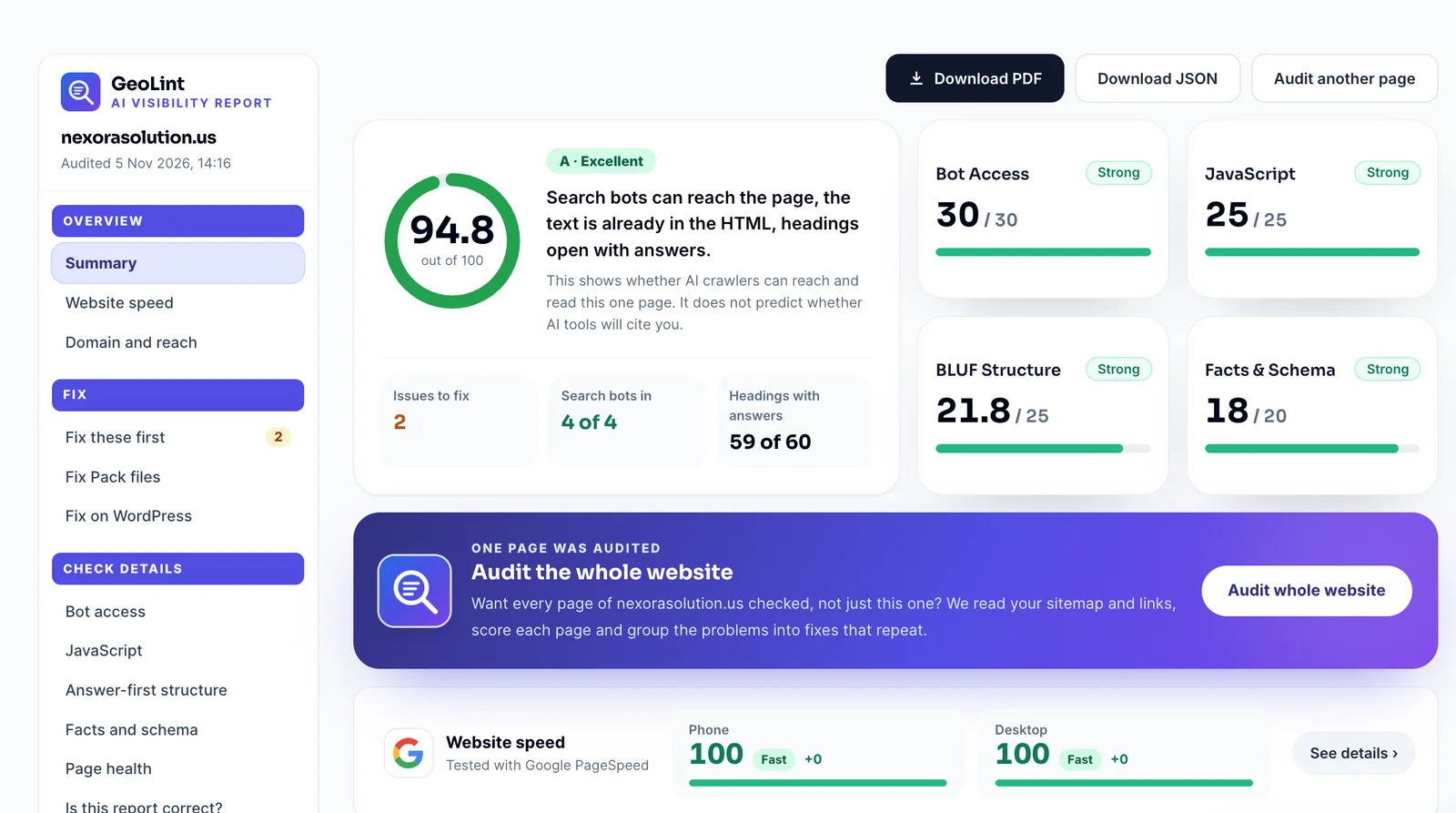
- Press the audit button and wait while the animation runs. GeoLint fetches the page, checks which AI bots may read it and measures structure, facts and speed.
- The report opens by itself. Your site is saved as a project, so you can come back to it later.
Part 2
Read the report
The menu on the left is the whole report. Every group answers one question.
- Overview
- Projects, the Summary score and the Domain overview (age, DNS and who hosts the site).
- Find problems
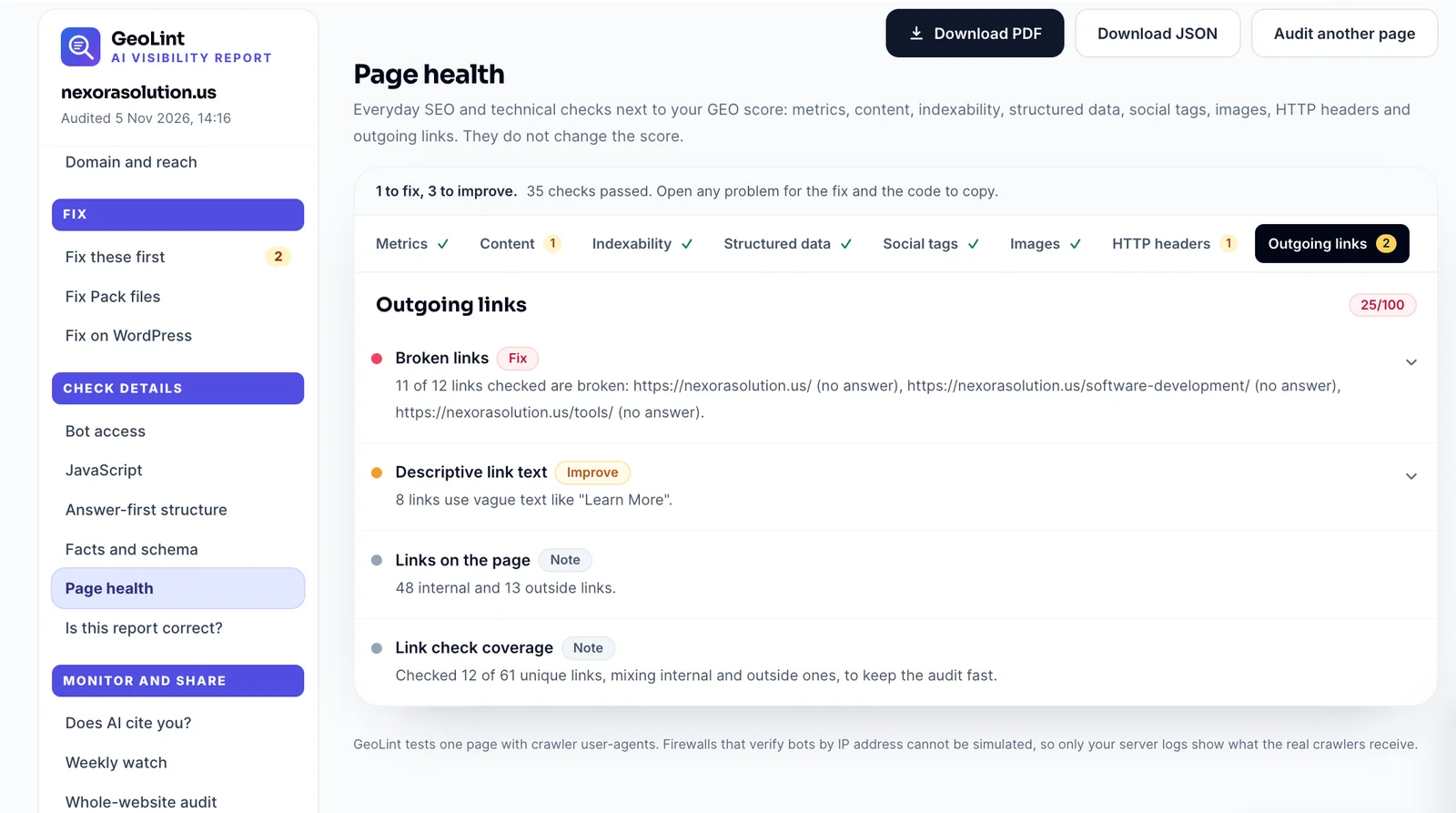
- Website speed, whole-website audit, page health, titles and meta, robots.txt, SSL, redirects and internal links.
- AI visibility
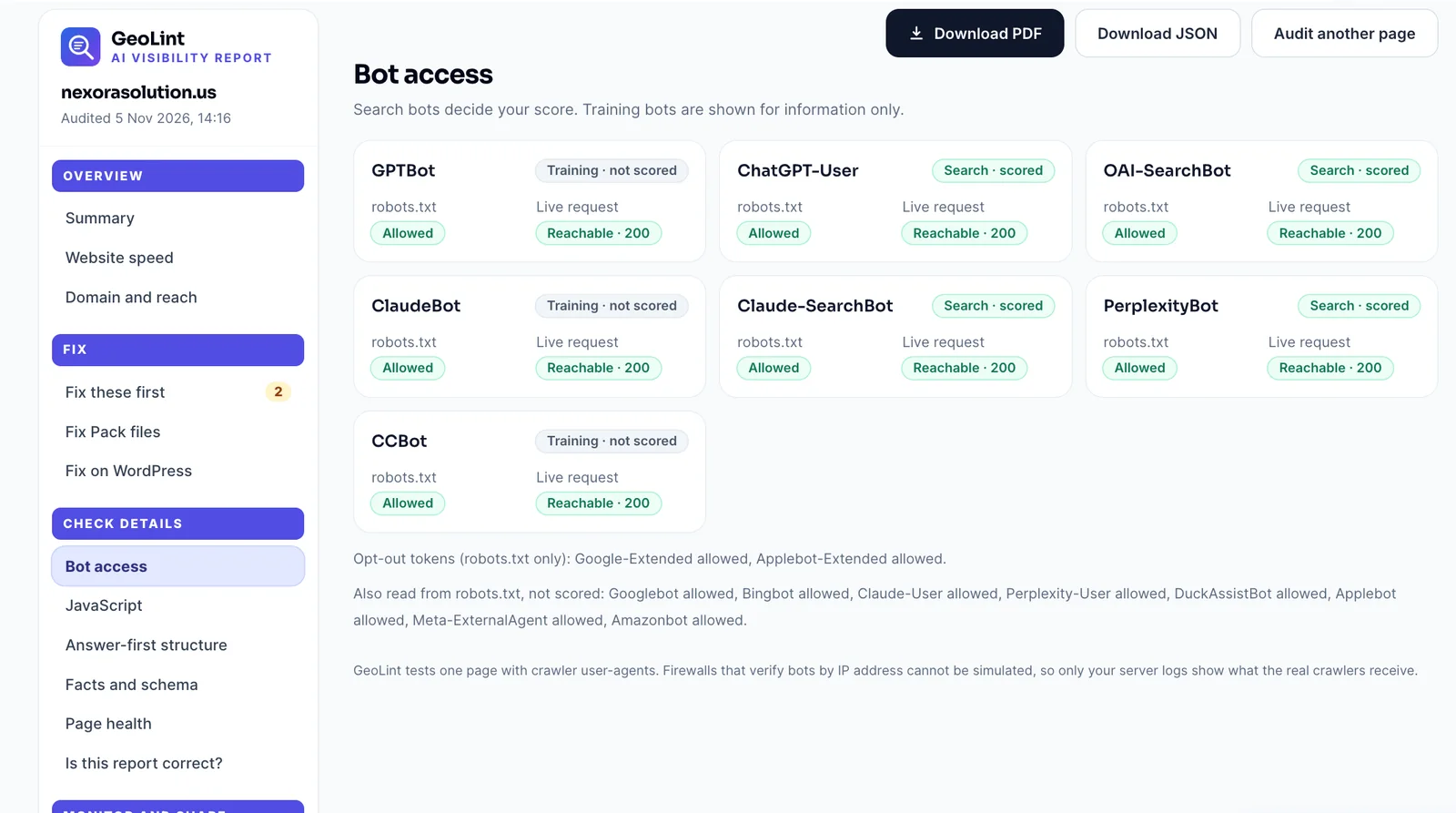
- Which AI bots can read you, how much JavaScript hides, answer-first structure, facts and schema.
- Fix it
- A short list of the most valuable fixes, the Fix Pack files and the WordPress helper.
- Improve content
- Readability, keyword ideas, a keyword checker, content gap and competitor comparison.
- Grow on Google
- Search Console insights, quick wins and keyword cannibalization.
- Backlinks
- Link audit and the backlink tracker.
- Monitoring
- Daily numbers and charts for your site.
Part 3
Projects: all your websites in one place
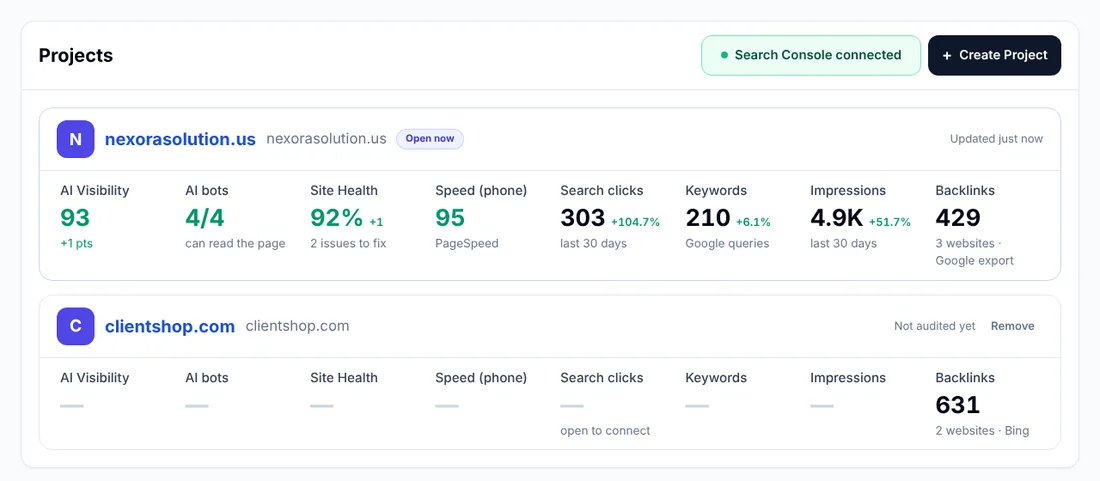
Projects is the first page of the report. Each website you audit or add becomes a row with its key numbers, in the same way as in tools like Semrush.
- Press Create Project, type the website address and confirm. You can keep up to 10 websites.
- Rows with a Search Console connection show clicks, impressions and keywords for the last 30 days. Others show a dash until you connect.
- Click a project name. GeoLint opens the report of that website on the Summary page.
- Use Month or 3 months in Domains for monitoring to change the period of the charts.
Part 4
Connect Google Search Console
Search Console gives real numbers from Google: what people searched, how often they saw you and how often they clicked.
- Press Search Console connect at the top of the report or on Projects.
- Sign in with the Google account that owns the website and allow read-only access.
- Pick the property that matches your site. The numbers appear within seconds.
- Open Grow on Google to see Insights, Quick wins (searches one fix away from more clicks) and Cannibalization (two of your pages fighting for one search).
Part 5
Backlinks: links to and from your site
Backlinks are links from other websites to yours. GeoLint has two tools: one for the links on your own site, one for links that point to you.
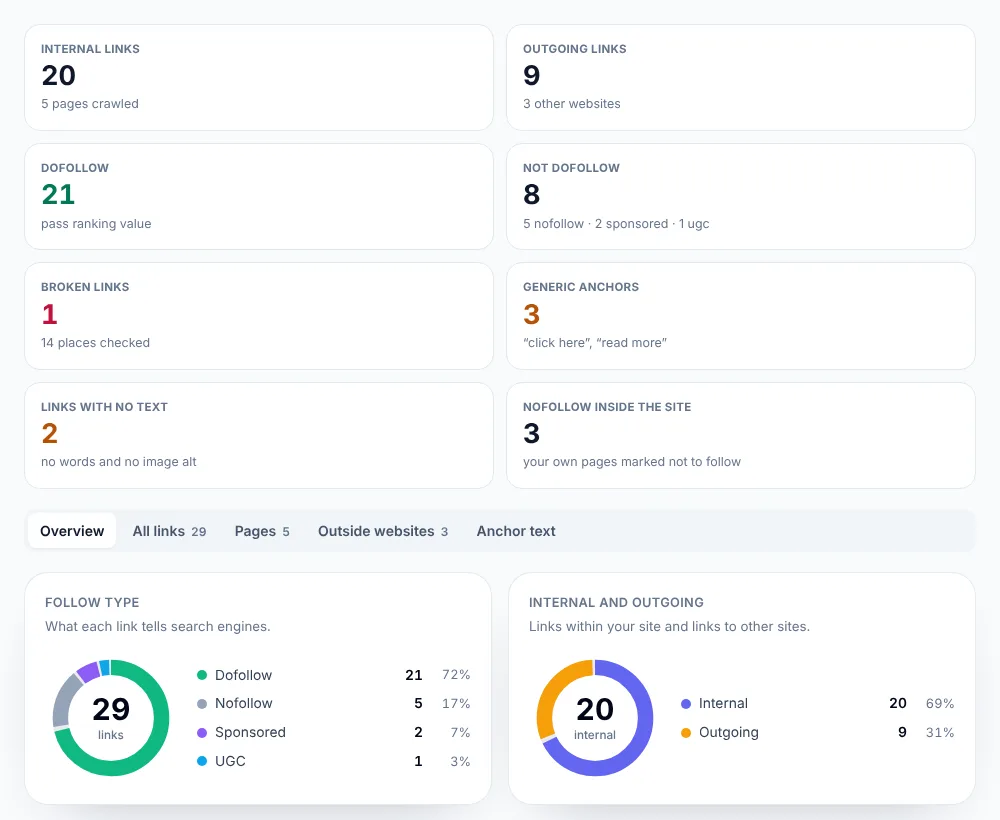
- Open Backlinks, then Link audit, and press the audit button. Use the tabs: Overview, All links, Pages, Outside websites, Anchor text.
- Use the filters on All links to see only dofollow, nofollow, sponsored, ugc or broken links. Export the list as CSV.
- Open Backlink tracker and paste the addresses of pages that link to you, one per line, then press check.
- To fetch links automatically, press Connect to fetch, paste your Bing API key and press Connect and fetch.
- Link audit
- Crawls up to 40 pages of your site. Lists every link as dofollow, nofollow, sponsored or ugc, finds broken links, links with no text and weak anchors such as "click here".
- Backlink tracker
- Add pages that should link to you. GeoLint opens each one, checks that your link is still there and tells you if it is dofollow or nofollow. It re-checks once a day.
- Bing import
- Fetches the links Bing knows about for your site, automatically. Paste your free Bing Webmaster API key once.
- Google export
- Google has no link API. In Search Console, open Links, export the table as CSV and import that file instead.
Part 6
Monitoring: watch your numbers every day
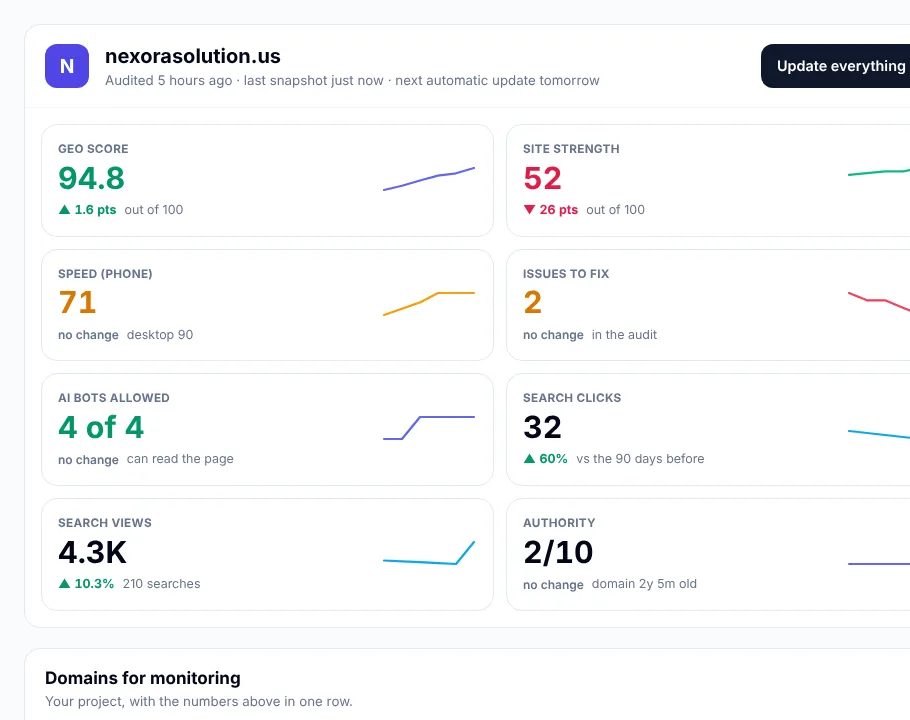
Monitoring saves one snapshot per day and draws the trend, so you see whether your work helps.
- Open Monitoring (last item of the menu).
- Each card shows a number and how it changed since the previous snapshot: GEO score, site strength, speed, issues, AI bots, search clicks and views, authority.
- Press Update everything now to refresh at once. Otherwise GeoLint updates by itself the next time you open it each day.
- Read Trend and History for the last 90 days. Changed since the last snapshot shows what moved up or down.
- Signed-in people can also turn on weekly email alerts that re-audit the page on our server.
Part 7
Fix what the audit found
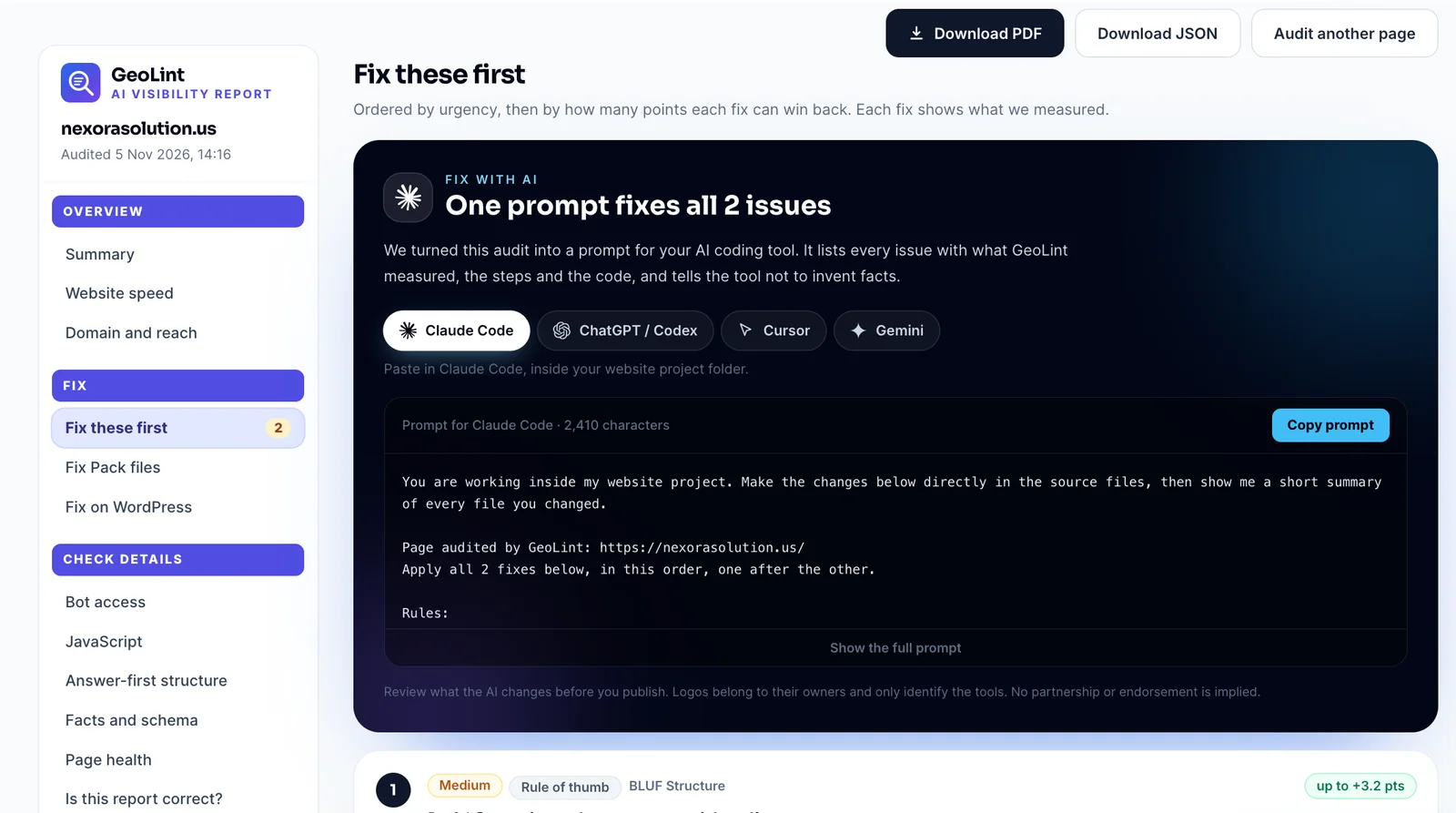
Fix these first lists the changes with the biggest effect, in order. You can do them yourself or let us do them.
- Open Fix it and start with Fix these first. Each item says what is wrong and what to change.
- Use Fix Pack files to copy ready-made robots.txt, llms.txt and schema code.
- On WordPress, install the free GeoLint plugin and apply the fixes with one click.
- Not technical? Press the Fix service button. We read your site, compare you with competitors and fix it. You can track the order under Orders.
Part 8
Where your data is kept
GeoLint keeps very little on its servers.
- In your browser
- Projects, daily snapshots, Search Console numbers, imported links, the backlink tracker and your Bing key.
- On our servers
- Audits you save or share, your orders if you buy the fix service and weekly alerts you turn on.
- Clearing it
- Clear your browser data for this site, or use Clear history on Monitoring. Removing a project removes its saved numbers.
Help
Questions and fixes
Your robots.txt, a firewall such as Cloudflare bot protection, or your host is refusing that crawler. Open AI visibility, Bot access to see which rule does it, then follow the fix shown there.
Still stuck? Write to support@nexorasolution.us and tell us the page address you audited.